Subject Enrollment
This guide explains how to enroll patients as subjects (participants) into a clinical study.
Target Audience
| Role | Access |
|---|---|
| Study Designer | Can enroll subjects into studies they configure |
| Study Coordinator | Can enroll subjects into their assigned studies |
Patients must already exist in the Patients registry before they can be enrolled as study subjects. If a patient is not found during enrollment, add them via Patients → Add Patient first.
Step 1: Open the Subjects Tab
- Navigate to Studies in the sidebar
- Click a Study ID to open the study
- Click the Subjects tab in the study navigation bar
When no subjects have been enrolled yet, the tab shows an empty state:
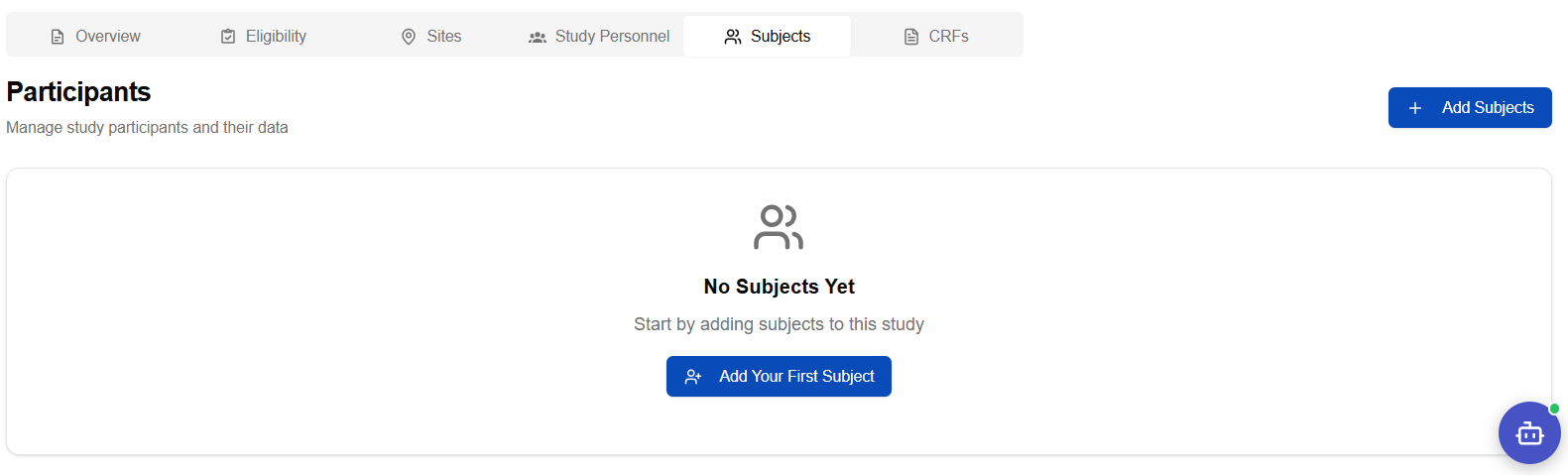
Click + Add Subjects (top right) or Add Your First Subject to open the enrollment panel.
Step 2: Search and Select Patients
The enrollment panel opens with a patient search field:
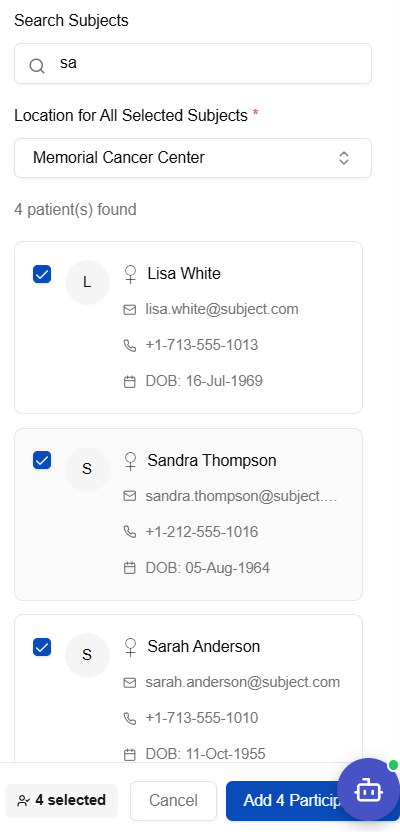
- Type a name in the Search Subjects field to find patients
- Results show each patient's name, email, phone, and date of birth
- Select a site from the Location for All Selected Subjects dropdown — this assigns all selected patients to the same clinical site
- Check the box next to each patient to include them
- The footer shows the count of selected patients (e.g., 4 selected)
- Click Add Participants to confirm enrollment
You can select multiple patients in one go and enroll them all at the same site in a single action.
Step 3: Review the Enrolled Subjects List
After enrollment the Subjects tab refreshes to show all enrolled participants:
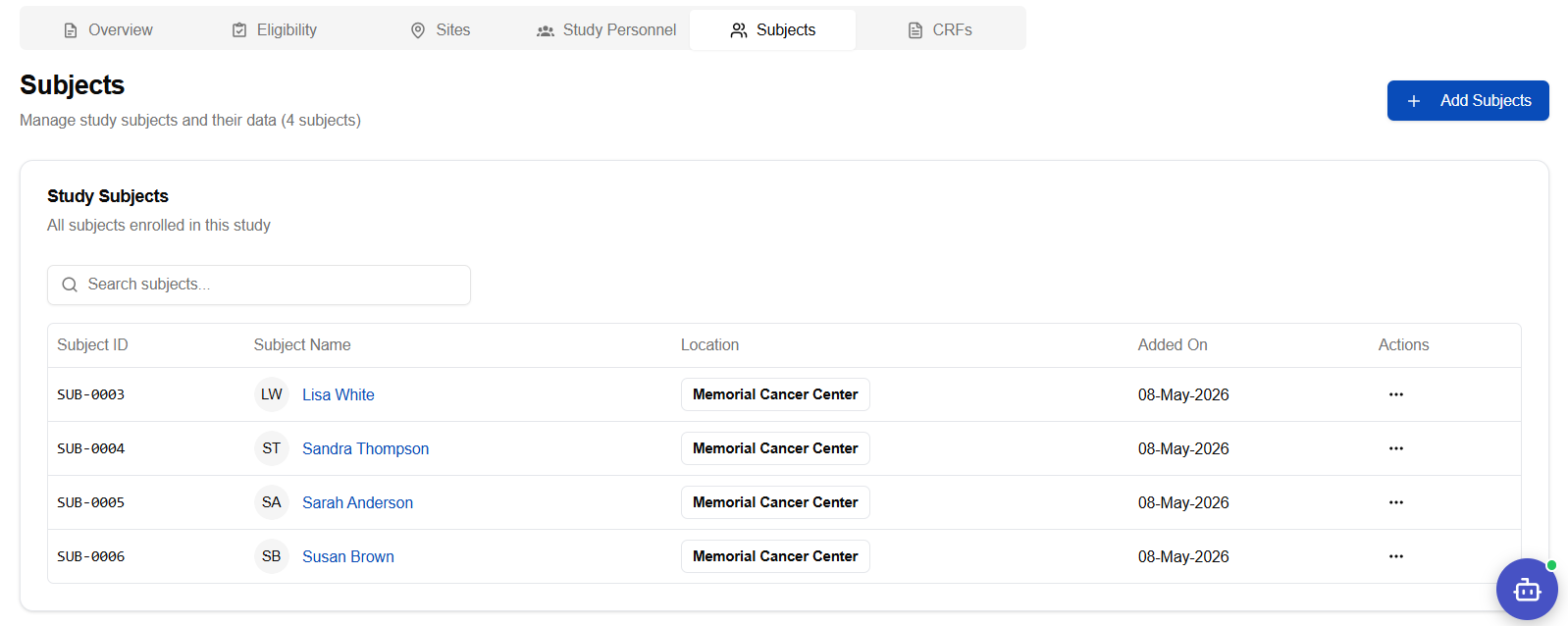
Each row shows:
| Column | Description |
|---|---|
| Subject ID | System-generated ID (e.g., SUB-0003) |
| Subject Name | Patient's full name — click to open the subject record |
| Location | The clinical site the subject is assigned to |
| Added On | Date the subject was enrolled |
Actions (...) | Remove subject or other actions |
Opening a Subject Record
Click any Subject Name in the list to open that subject's full clinical record.
The subject record contains the Subject Navigation panel on the left side with eight clinical data sections:
- Consent
- Demographics
- Vitals
- Family Medical History
- Concomitant Medication
- Laboratory
- Physical Examination
- Adverse Events
For a complete guide to recording data in each section, see Subject Clinical Data Capture.
Quick Reference
| Action | Where |
|---|---|
| Enroll subjects | Studies → [Study] → Subjects tab → + Add Subjects |
| Add a missing patient | Patients → Add Patient |
| Open a subject record | Studies → [Study] → Subjects → click Subject Name |
| Remove a subject | Subjects tab → ... menu → Remove |